
Change An Image
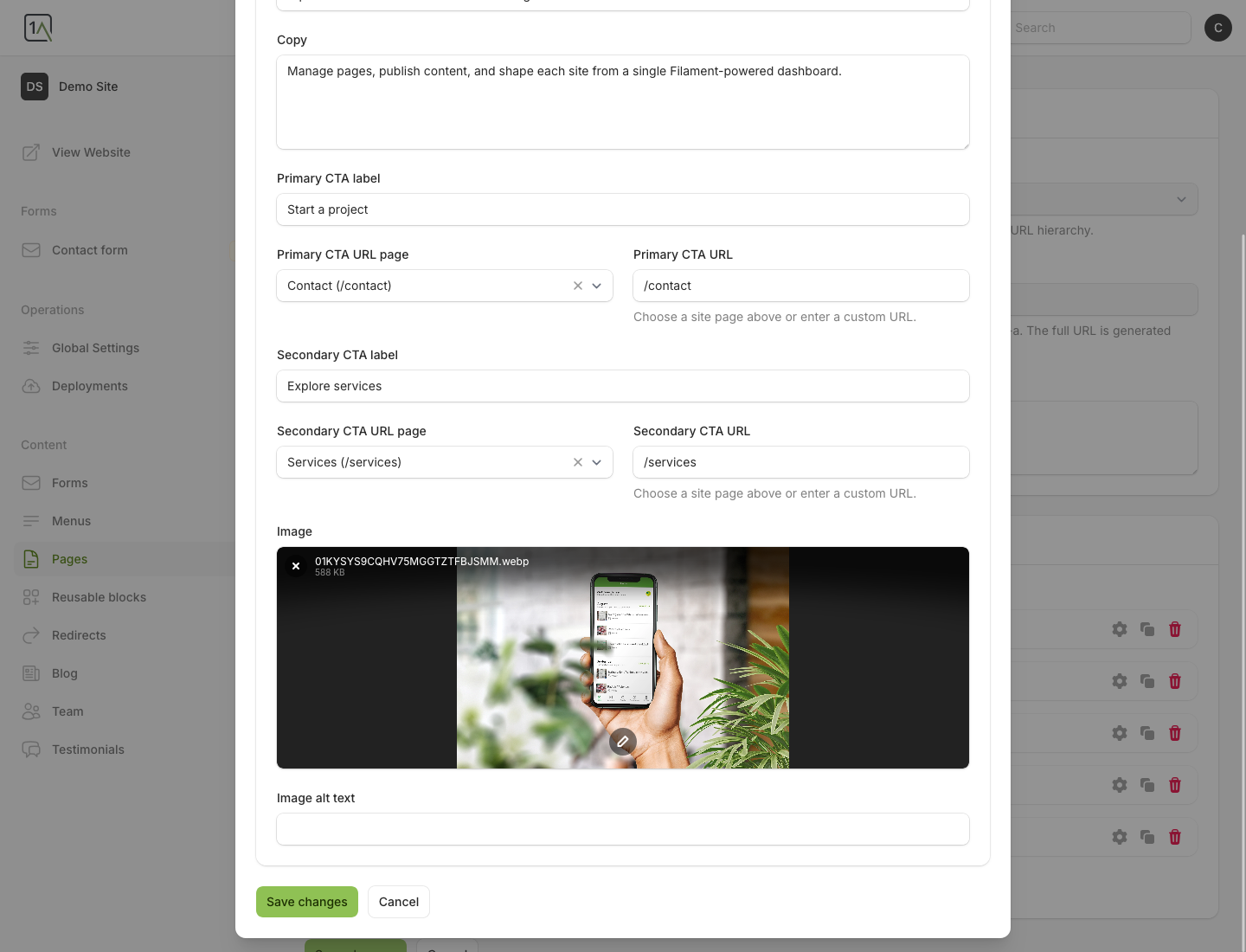
Images are usually edited from within a page block. For example, a hero block can contain a main banner image, while other blocks can contain section-specific images.
Replace An Image
- Open the page that contains the image.
- Edit the relevant block.
- If an image is already attached, press the
xin the corner of the image first. - Choose
Browseto upload a replacement image. - Wait for the new image preview to finish loading.
- Update the alt text if the field is available.
- Save the page.
Edit An Existing Image
- Open the page and edit the relevant block.
- Hover over the current image preview.
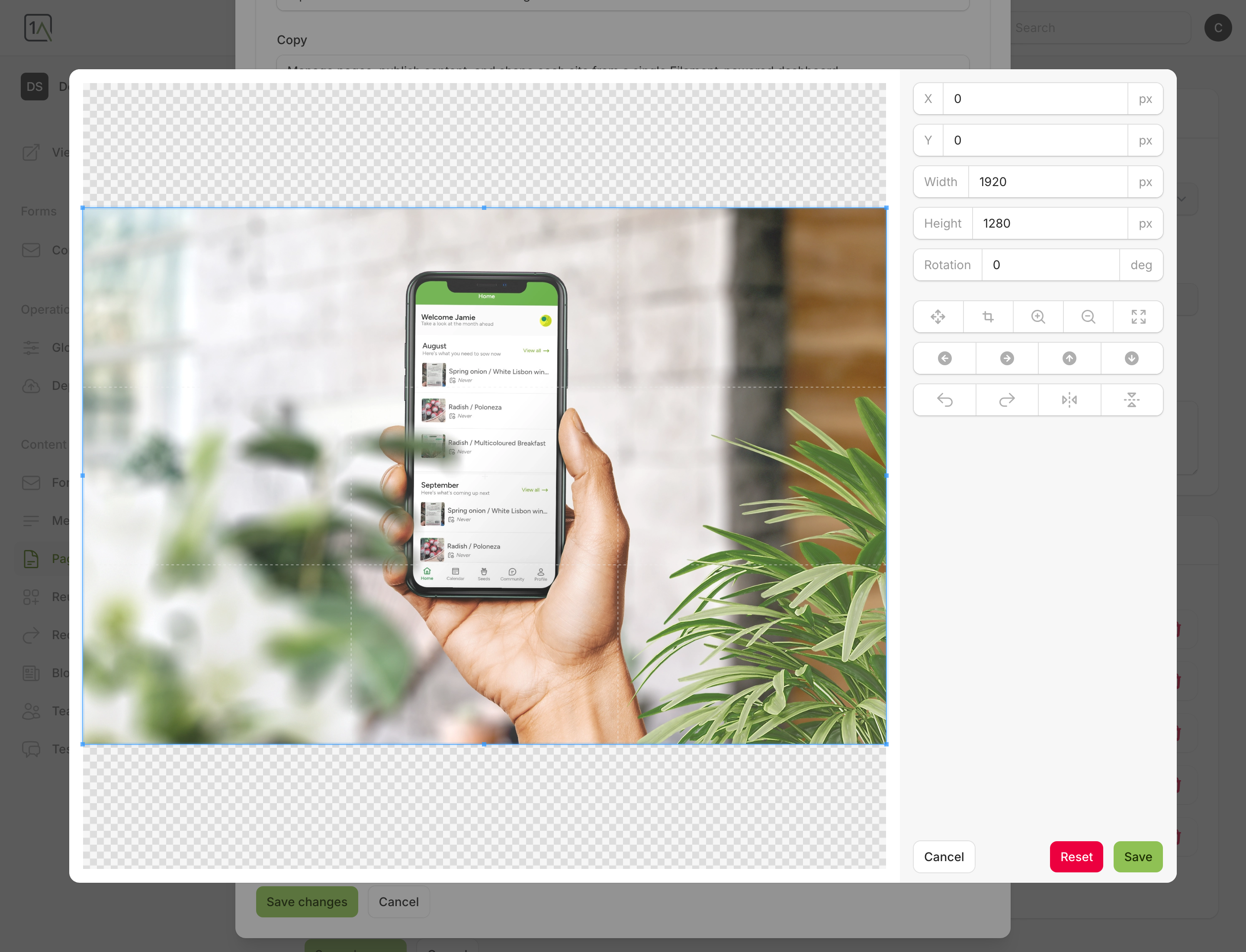
- Use the centre edit icon to open the image editor.
- Adjust the crop or positioning as needed.
- Save the image in the editor, then save the page.
Tips
- Use a clear, high-quality image that suits the block layout.
- Keep file sizes sensible so pages stay fast.
- Alt text should describe the image meaningfully when it adds context.