
Edit Menus
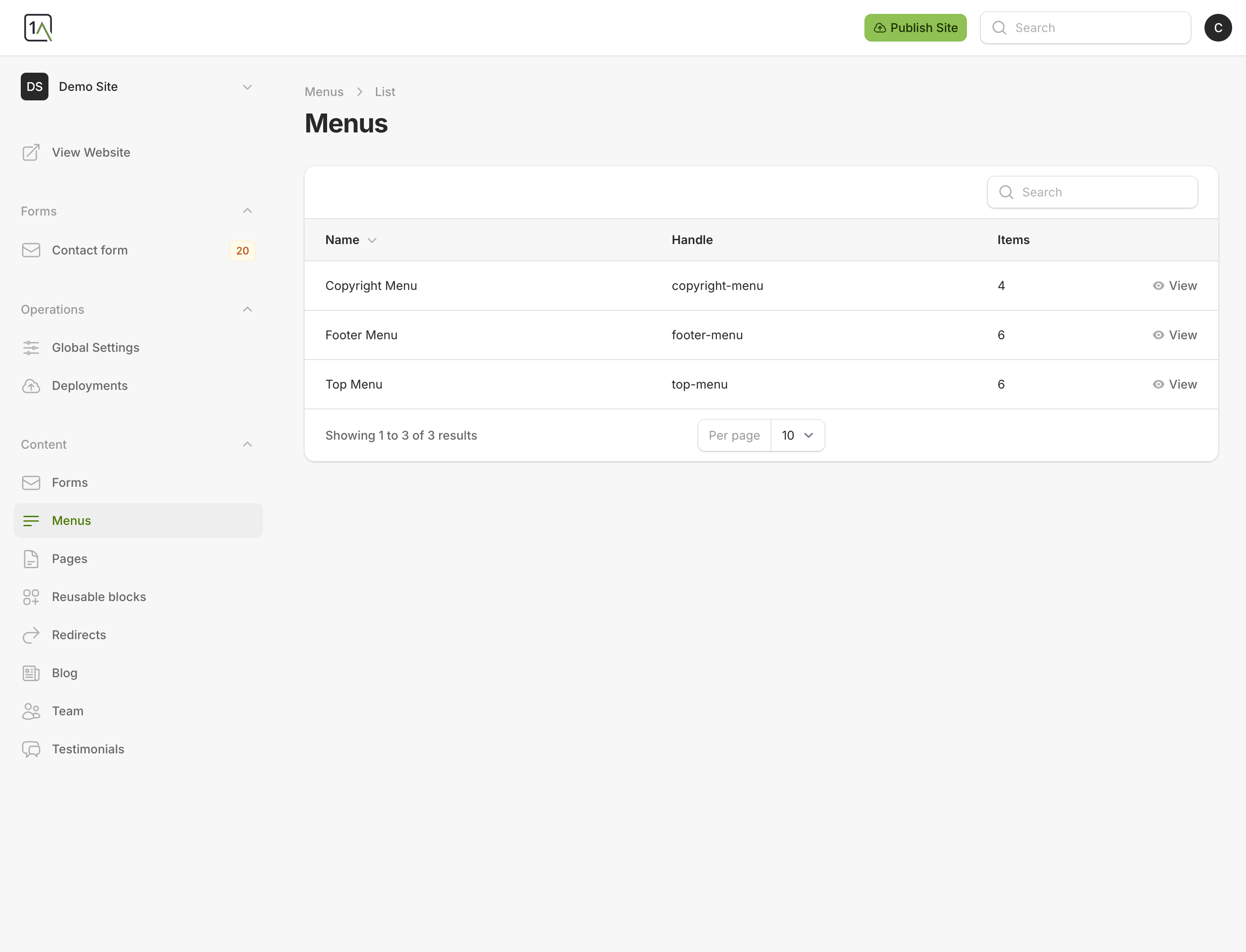
Use Menus when you need to update the links shown in your website navigation or footer.
What Menus Usually Control
- The main site navigation.
- Footer links.
- Smaller utility or legal menus, depending on how your site was set up.
Open A Menu
- Choose
Menusin the left-hand navigation. - Open the menu you want to edit.
- Work in the
Menu Itemssection for that menu.
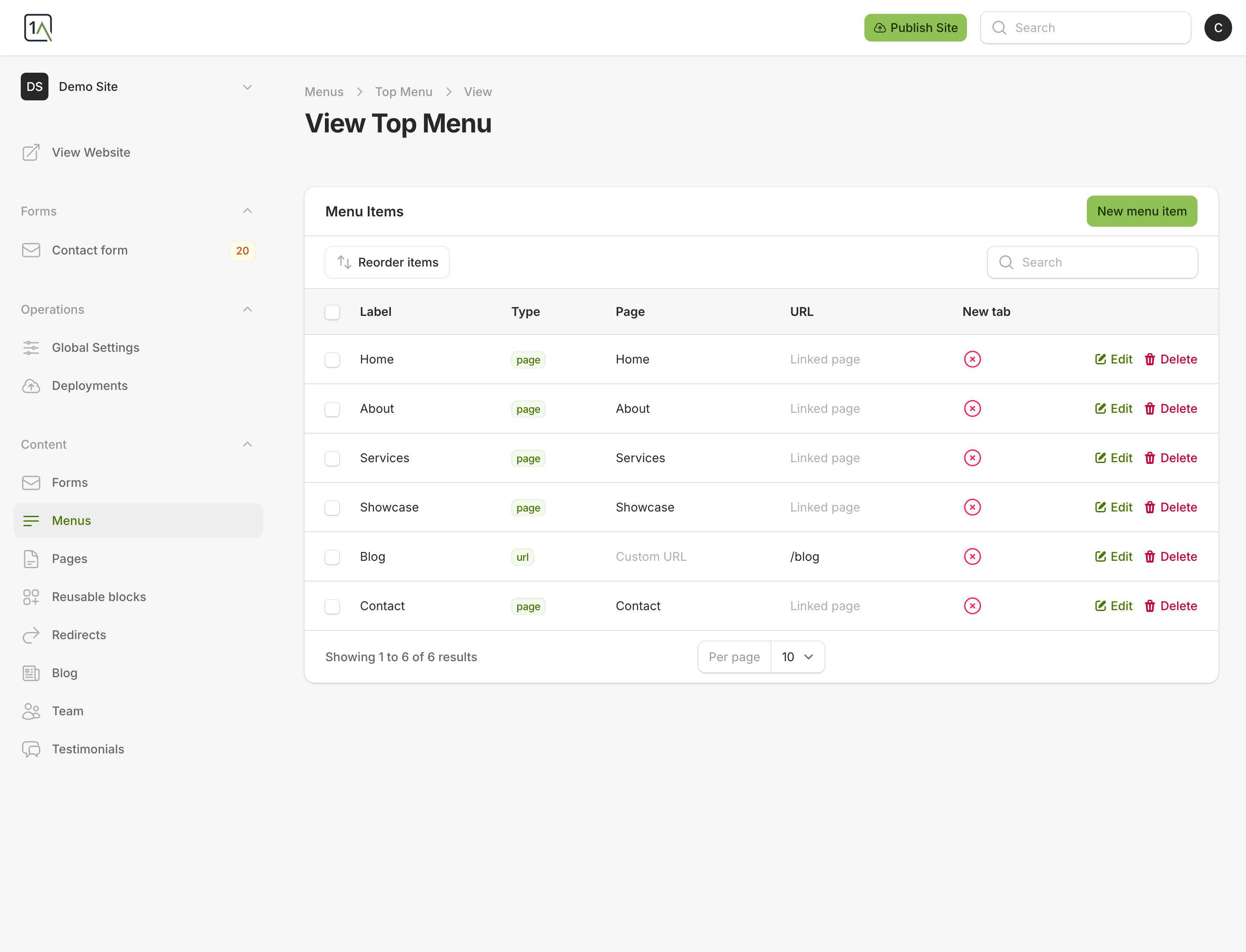
Add A Menu Item
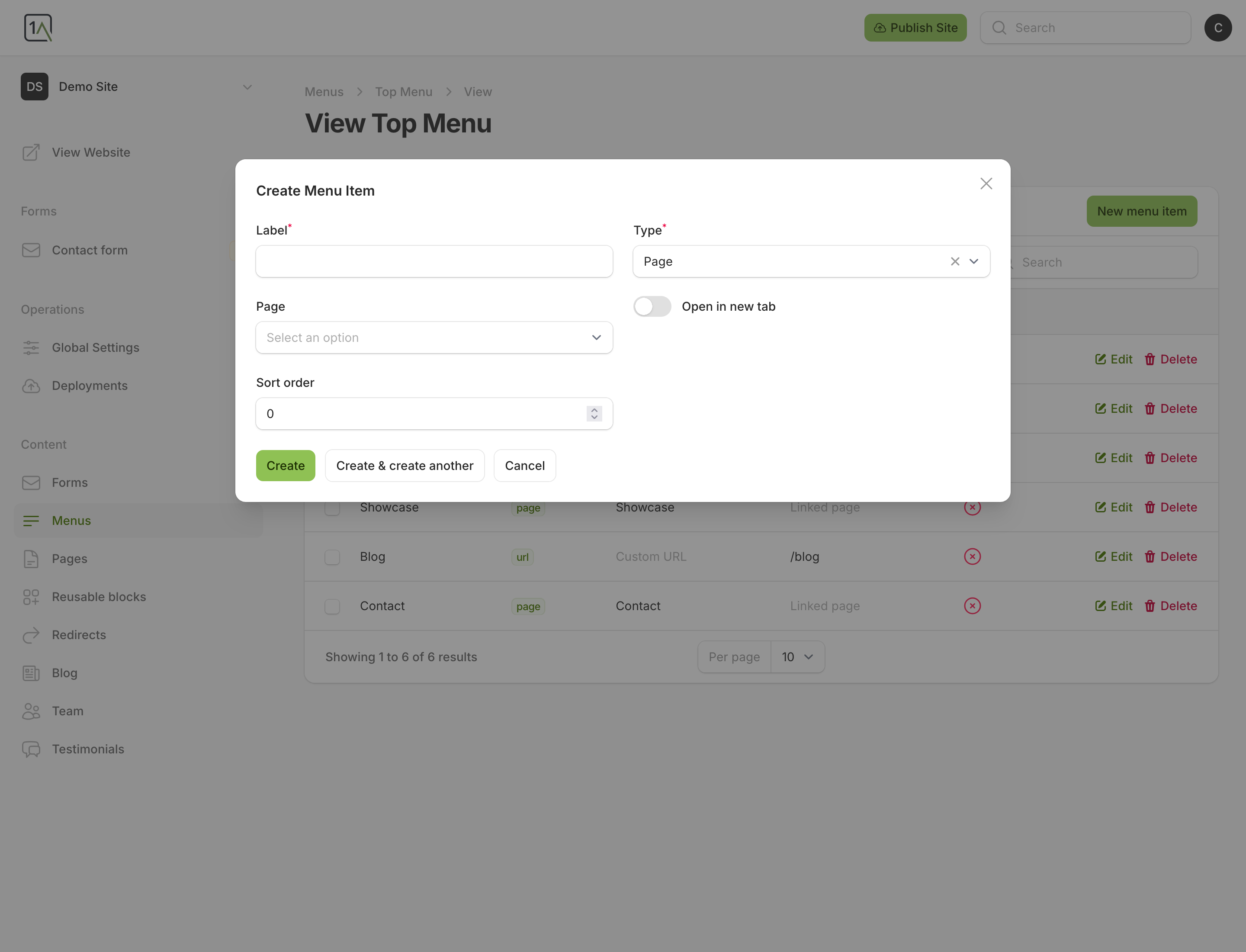
- Choose
New menu item. - Enter the link label.
- Choose the link
Type. - If you choose
Page, select the page from thePagefield. - If you choose
Custom URL, enter the link in theCustom URLfield. - Turn on
Open in new tabonly when that behaviour is needed. - Save the item.
Edit An Existing Menu Item
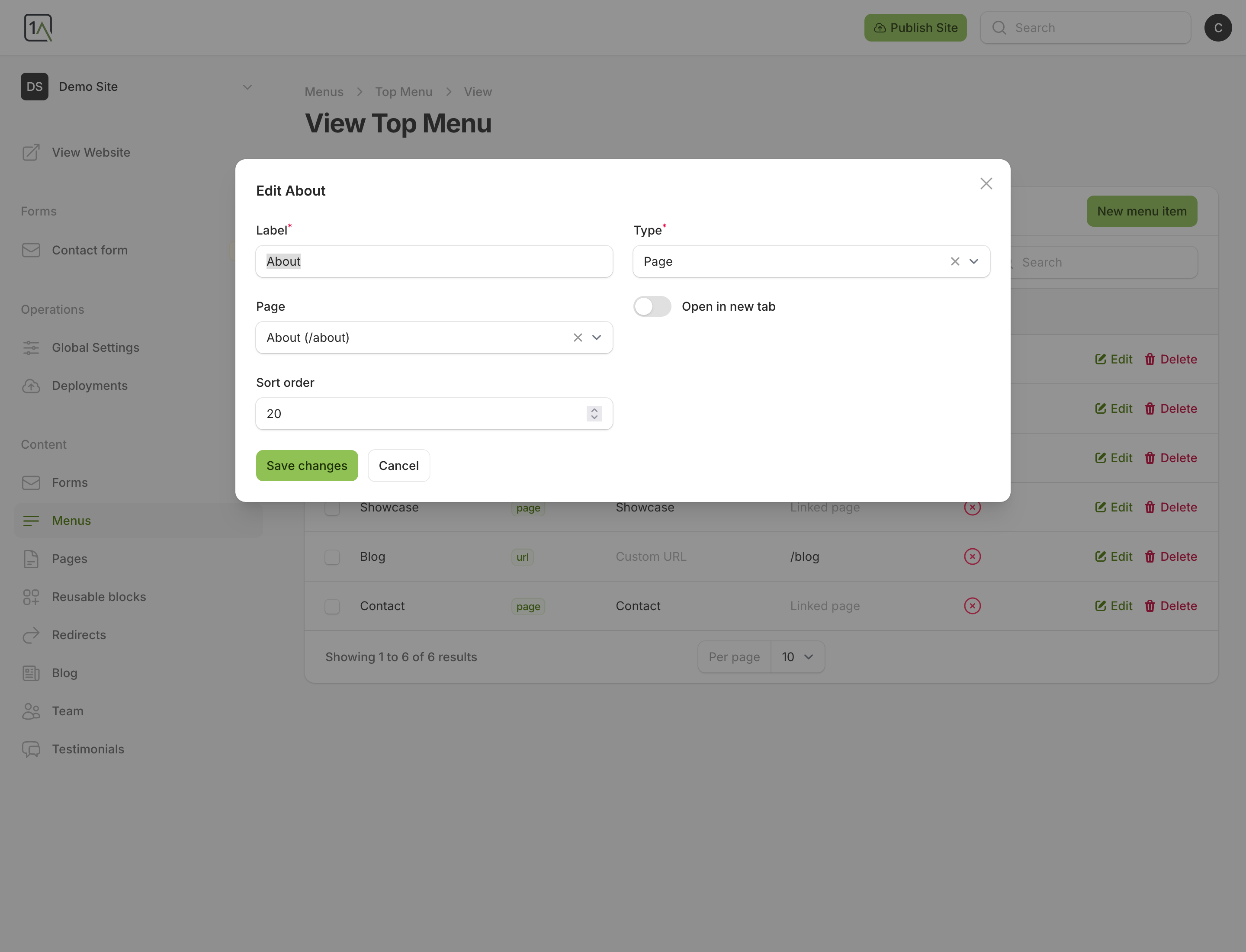
- Find the item in the list.
- Choose
Edit. - Update the label, destination, or new-tab setting.
- Save your changes.
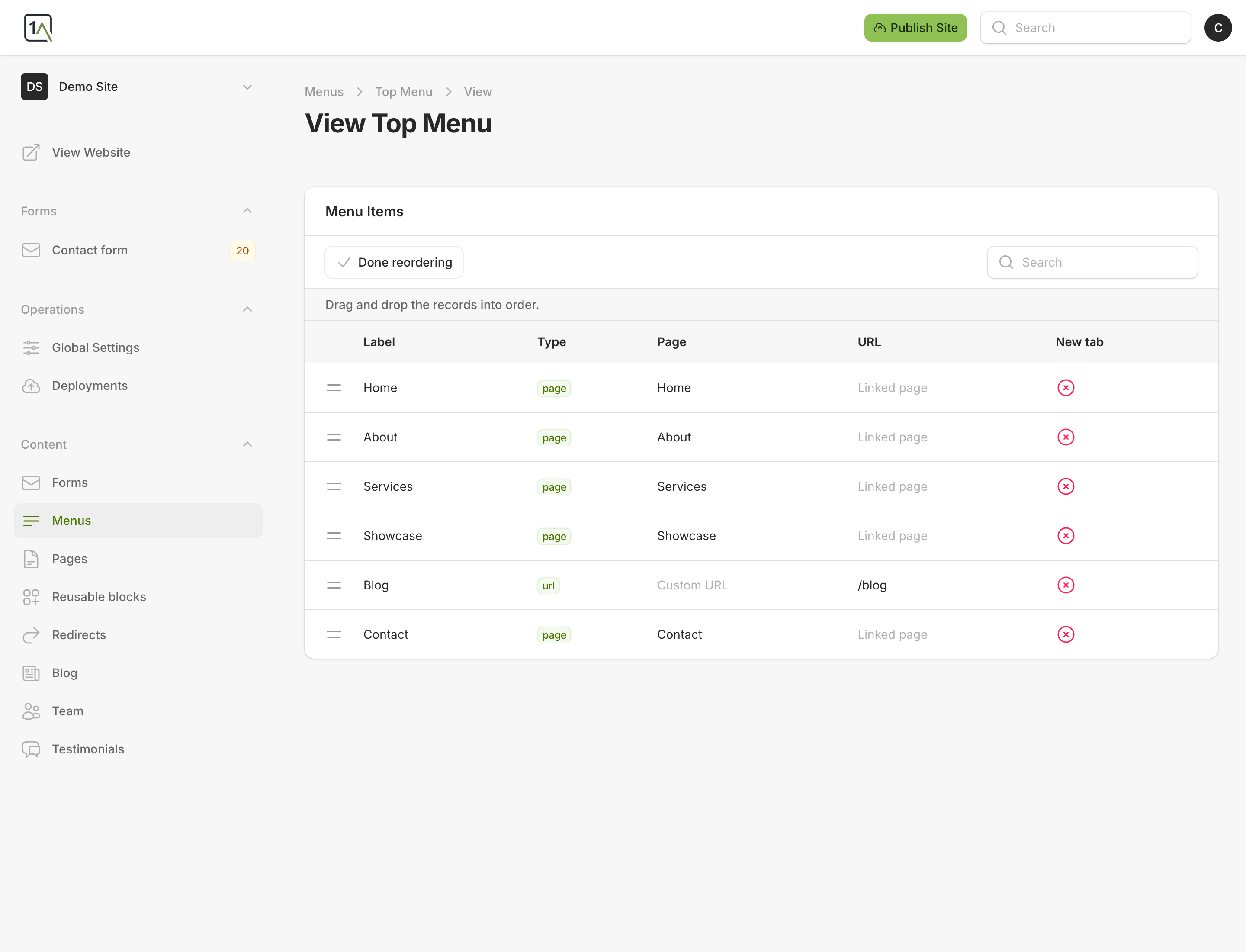
Reorder Menu Items
- Choose
Reorder items. - Drag the items into the order you want.
- Choose
Done reordering.
Tips
- Use
Pagelinks for normal internal navigation whenever possible. - Use
Custom URLfor external websites or special links that do not point to a CMS page. - Review the live order carefully before publishing if the menu is visitor-facing.